Set up automated bank feeds: a guide for owners and accountants
By The AI Ledger editorial team | Published 2026-08-19 | Updated 2026-11-20
Connect your bank feed in three moves: authorise the connection, select which accounts to share, and confirm the opening balance before your first transactions land. That is the job in outline; the detail is what stops it going wrong.
Do this now, in order:
- Log in to your accounting software, go to the banking or bank feeds screen, and start the connection to your bank.
- Authorise access through your bank's own login (not your software's), select the correct current account, and set the import start date to match your last reconciled statement.
- Check the opening balance shown in the software against your bank statement on that date.
You will know it has worked when transactions start appearing in your banking queue (Xero, for example, imports each business day) and the opening balance agrees exactly with the bank statement. If it does not agree, stop before you code a single transaction.
Tip: _A wrong opening balance or start date is the mistake to avoid: it duplicates transactions you have already entered by hand. Fix the balance first._
!Hand adjusting bank feed opening balance setting

Most UK bank feeds now run over open banking, which means you give consent through your bank and the software never sees your banking password. The AI Ledger tracks which software handles this setup with the least friction, which helps once you are doing it for several clients.
Key Takeaways
Getting an automated bank feed right comes down to setting the correct opening balance and start date first, then reviewing rather than blindly accepting auto-matches.
| Point | Details |
|---|---|
| Verify before coding | Match the opening balance to your last reconciled bank statement before coding any transactions. |
| Avoid duplicate imports | Set the feed's start date to the day after your last manual entry to prevent overlap. |
| Review auto-matches | Check suggested matches rather than accepting them automatically, especially with new bank rules. |
| Plan for re-consent | Open banking consent has to be renewed periodically (every 90 days for Xero feeds); give one person responsibility for it. |
| Compare connectors properly | Use the AI Ledger finder and scored listings to match software to your practice size and task. |
Table of Contents
- What is an automated bank feed and which type will you get?
- What do you need before connecting a feed?
- How do you set up a bank feed step by step?
- Platform notes: Xero and other software
- How does consent work under open banking?
- Why did my bank feed stop working or show wrong data?
- Which connector or software actually suits your practice?
- What accountants get wrong when setting up feeds
- Need help choosing the right connector or software?
- Frequently asked questions
- Sources
What is an automated bank feed and which type will you get?
A bank feed is a secure, ongoing connection that pulls transaction data from your bank into your accounting software, so payments in and out appear in your banking screen without anyone typing them. The transactions arrive uncategorised, waiting for you to match or code them, so the bookkeeping becomes reviewing rather than keying.
You will meet four connection types in practice:
- Direct open banking connection: your bank and the software connect directly, authorised through your bank's own login screen.
- Third-party aggregator (such as Plaid): sits between many banks and many software platforms, useful when your bank has no direct integration.
- SFTP or statement push: your bank sends encrypted files on a schedule, common with business banking portals that lack a modern API.
- CSV or manual import: you download a statement and upload it yourself. No live connection and no re-consent, but no automation either.
Where your bank and software offer a direct connection, start there. An aggregator widens bank coverage. Manual CSV import is the fallback when nothing else connects, not a long-term arrangement.
What do you need before connecting a feed?
Gather these first:
- Admin access to your accounting software and your online banking login. Only the account holder or someone with authorised online banking access can authorise a feed, and each person should use their own credentials.
- Your phone or other device for your bank's two-step login.
- Confirmation that the account is the business current account you mean to connect.
- Your import start date and the opening balance from your last reconciled bank statement.
- A note of any statement periods you have already imported by hand, so you do not pull the same weeks in twice.
Decide who in the practice authorises connections and who manages them afterwards. One named owner avoids several people each assuming someone else handles re-consent.
Tip: _If you manage several client accounts, connect one low-risk account first and watch it for a week before rolling the same setup out._
How do you set up a bank feed step by step?
The screens differ between platforms, but the sequence is the same:
- Open the banking section in your accounting software and choose to add a bank account.
- Search for your bank in the list, or add the account manually if it does not appear (that usually means the SFTP or CSV route).
- Authorise the connection through your bank's own login page, not a form inside the accounting software. This is the open banking consent step; as Xero puts it, you will never be asked to give your bank login details to anyone else.
- Select which accounts to share. Tick only the accounts you want feeding into that ledger.
- Set the import start date and opening balance, matched to your last reconciled statement date, not today's date.
- Map the feed to the correct bank account in your chart of accounts, so transactions land where your reports expect them.
- Turn on matching rules where the software supports them, but keep them narrow at first.
On historical transactions: Xero says a new feed can import up to 12 months of history; other software varies, so check your provider. That is useful when catching up a new client, but it creates a double-counting risk. If you have already entered March by hand and the feed also pulls March, every March transaction now appears twice. Set the start date to the day after your last manual entry.
Once the feed is live, run four checks before you trust it:
- Open the banking queue and confirm transactions are landing, not just that the connection shows as active.
- Spot-check several transactions against your bank statement for the same dates.
- Run a full reconciliation for the first period and confirm the closing balance agrees.
- Review auto-matched transactions rather than accepting them all. Accepting matches without looking, duplicate imports and over-broad bank rules are the usual sources of errors after setup.
Tip: _Build bank rules gradually and narrowly. A rule that catches "TESCO" and codes it to one account works. A rule that sends any transaction over £50 to "general expenses" will misfile things you will not notice until year end._
Review the banking queue weekly rather than letting weeks of transactions pile up. And use one naming convention for bank accounts across your cloud accounting setup, so "Business Current" and "Main A/C" are never the same account under two names.
Platform notes: Xero and other software
Xero connects UK banks through open banking. From Xero's own open banking page: transactions import each business day; consent lasts 90 days, after which you re-authenticate; a re-authenticated feed can only bring in 90 days of history, so if a feed has lapsed for longer you need to import the gap by hand; and the feeds are free for Xero users. A Xero blog post says the 90-day bank re-authentication is being phased out as banks apply FCA changes, so your experience may depend on your bank. Listing: Xero, Xeroforce and JAX.
QuickBooks, FreeAgent and Sage all offer UK bank feeds, but the steps, refresh times and history limits differ. Check the vendor's own help pages for current click paths. Our listings: QuickBooks and Intuit Intelligence, FreeAgent and Sage Copilot.
Aggregators such as Plaid sit behind many tools' "connect your bank" buttons. When a feed runs through an aggregator, a problem can sit with the bank, the aggregator or the accounting software, so note which one is involved before you contact support.
Screens change between versions, so rely on your vendor's support pages for exact click paths. The AI Ledger's accounting software integration guide) explains how connector types interact with your chart of accounts.
How does consent work under open banking?
Open banking consent replaces the old practice of handing your banking password to a third-party app. You authorise access through your bank's own login screen, and the software receives the transaction data your bank shares, never your credentials. Your bank also lets you remove access for any business you have connected, from your online banking.
A few practical checks worth doing early:
- Check in your online banking who currently has access to your accounts, and remove anything you do not recognise.
- Check the connector's privacy statement for how long it keeps transaction data after a feed is disconnected.
- If you keep books for other businesses, record how you handle their bank data in your data protection records under UK GDPR.
Tip: _Put one named person in charge of re-consent across all client feeds, and put the renewal dates in a calendar rather than waiting for a feed to stop._
Why did my bank feed stop working or show wrong data?
Most feed problems fall into five groups, and each has a fairly quick fix.
!Diagram of common bank feed problems and solutions
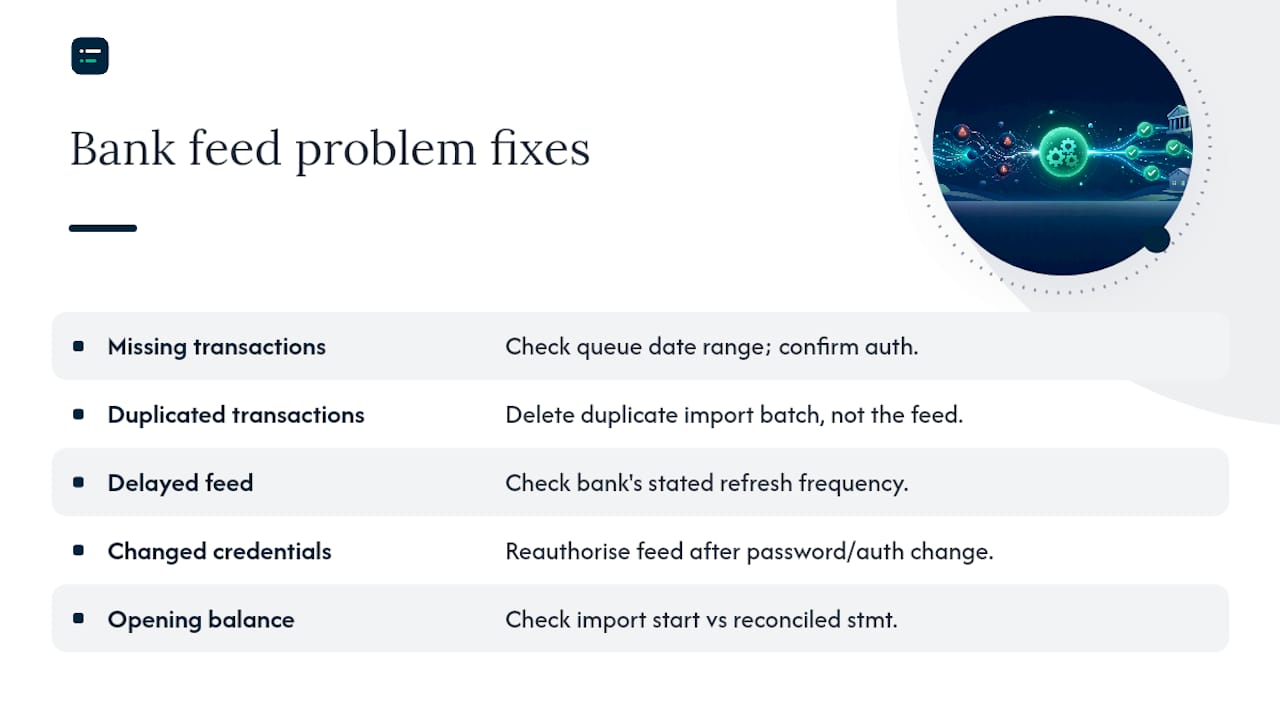
Missing transactions: check the banking queue date range first, then whether the consent has lapsed. An expired connection is the usual cause.
Duplicated transactions: usually a manual CSV import overlapping the live feed's date range. Delete the duplicate batch, not the feed.
Delayed feed: banks and software import on their own schedules (Xero imports each business day, at various times), so check your provider's stated timing before assuming something is broken.
Changed bank login: if you have changed your online banking password or login method, the feed may need re-authorising.
Mismatched opening balance: this almost always points back to setup. Re-check the import start date against your last reconciled statement date.
Before contacting support, collect the account name, the dates affected, a screenshot of the banking queue and any transaction references you can see.
Which connector or software actually suits your practice?
Choosing gets easier with a short checklist: bank coverage (does it support your client's actual bank, not just the largest ones), how often it imports, how much transaction detail comes through (some feeds drop payee references that others keep), how often consent needs renewing, and what support looks like when something breaks.
!Hand pointing at multiple bank account overview

Practices that get the most out of feeds treat them as a weekly job, not a monthly scramble. Write bank rules narrowly, log any feed changes so you have a record when a client asks why a connection was reset, and add a short note to reconciliations where an auto-match needed correcting. If you manage many client entities, an aggregated setup can simplify oversight; a smaller practice with one or two bank accounts per client rarely needs it. The AI Ledger's guide to accounting workflow automation has more on where feeds fit into a wider setup.
Tip: _Try any new connector on one low-value account for a fortnight and time reconciliation before and after. That is the number that justifies switching._
What accountants get wrong when setting up feeds
Most setup mistakes come from moving too fast. Someone connects the feed, skips the opening balance check because it looks about right, and finds weeks later that a batch of transactions is duplicated against a manual import nobody remembered. The fix is simple: check the balance against the statement before you code anything.
The bigger habit to break is trusting auto-matching completely. A suggestion is not a decision. A rule that files every "Amazon" payment to office supplies will miscode a software subscription for months before anyone spots it in a report.
Split the work: a quick daily look at the banking queue to catch anything obviously wrong, and a proper monthly reconciliation where you question the numbers rather than clicking through them. If a feed misbehaves for a client, tell them plainly what happened and what you did about it.
Need help choosing the right connector or software?
Choosing between platforms is often harder than the setup itself. The AI Ledger finder matches your practice size and the task you are automating, here bank feeds and reconciliation, to suitable software, and the bank reconciliation category lists tools that work on top of your feeds, such as Dext and AutoEntry for the receipts side.
Every listing in the directory of 300+ tools carries an independent editor score and a last verified date, and no score is for sale. Changes to bank coverage or consent rules are covered in the free Friday newsletter.
Frequently asked questions
How long does it take to set up an automated bank feed? The connection itself is usually quick once you have your online banking login to hand. The history then imports on the provider's schedule, so allow until the next business day before judging whether it has worked.
Do automated bank feeds cost extra? Often not: Xero says its open banking feeds are free for Xero users. Other providers vary, so check the pricing page for your software or connector.
Can I connect more than one bank account to the same software? Yes. Most platforms let you connect several accounts, including savings and other currency accounts, and map each to its own bank account in the ledger.
What happens if I lose access to my bank feed? The connection needs re-authorising through your bank's login screen, typically when consent expires or after a login change. Transactions already imported are not affected, but in Xero a re-authorised feed only brings back 90 days of history, so import any longer gap by hand.
Is it safe to link my bank account to accounting software? Open banking connections are authorised at your bank and the software never receives your banking password. You can remove access at any time through your online banking.
Sources
- Open Banking and Xero Bank Feeds, Xero UK (checked 20 November 2026)
- The reliability of UK bank feeds, Xero blog
- Open banking for business, Xero UK guide
Always check your own software vendor's support pages for exact screens, since click paths change between updates.
Recommended
- Automated accrual accounting: a 2026 guide for finance teams)
- Grow your bookkeeping practice with automation)
- Automate accruals and prepayments: the 2026 UK guide
- Automated financial reporting: a guide for finance teams)