QuickBooks keyboard shortcuts: speed up your workflow
By The AI Ledger editorial team | Published 2026-08-07 | Updated 2026-11-20
The QuickBooks keyboard shortcuts worth learning first are: Ctrl + Alt + I (new invoice in Online), Ctrl + I (new invoice in Desktop), Ctrl + Alt + A (chart of accounts in Online), Ctrl + Alt + ? (open the in-app shortcut list in Online) and Alt + S (save a form in Online). The rule to remember: QuickBooks Online uses a Ctrl + Alt modifier on Windows because it runs in a browser, while QuickBooks Desktop uses a single Ctrl modifier because it is an installed application.
The most useful shortcuts across both versions at a glance:
- Ctrl + Alt + I, new invoice (Online, Windows)
- Ctrl + I, new invoice (Desktop)
- Ctrl + Alt + A, chart of accounts (Online, Windows)
- Ctrl + Alt + F, search transactions (Online)
- Alt + S, save a form (Online; use Alt + Shift + S in Chrome or Firefox)
- Ctrl + Alt + ?, open the in-app shortcut list (Online, Windows)
- T, enter today's date in any date field (Online)
Keeping your hands on the keyboard during data entry saves the reach for the mouse on every field, which adds up over a day of bookkeeping.
- * *
Key takeaways
QuickBooks Online uses Ctrl + Alt on Windows, QuickBooks Desktop uses a single Ctrl, and learning a handful of shortcuts well beats skimming a long list.
| Point | Details |
|---|---|
| Start with five shortcuts | Learn new invoice, save, chart of accounts, search and the shortcut-list hotkey before anything else. |
| Use date keys every session | Press T for today, + or - for adjacent days, and W/K, M/H, Y/R for period boundaries. |
| Know your browser caveat | Intuit lists Alt + S to save, and Alt + Shift + S in Chrome and Firefox. |
| Print the shortcut list | Open it with Ctrl + Alt + ? (Windows) or Ctrl + Option + ? (Mac) and keep a copy by your monitor. |
| Practise in small sets | Add new shortcuts only once the current set feels automatic. |
Subscribe to The AI Ledger's free Friday newsletter for plain-English updates on AI accounting tools, new QuickBooks features, and workflow automation tips delivered weekly.
- * *
Table of Contents
- What are the core QuickBooks Online shortcuts for Windows?
- Which shortcuts work when a form is open?
- How do date shortcuts and in-field calculations speed up data entry?
- How do browser differences affect QuickBooks Online shortcuts?
- How do QuickBooks Online shortcuts work on a Mac?
- What are the core QuickBooks Desktop shortcuts?
- How do Online and Desktop shortcuts differ, and which should you learn first?
- How should you practise shortcuts so they stick?
- How do you open the in-app shortcut list and get a printable version?
- Sources
What are the core QuickBooks Online shortcuts for Windows?
QuickBooks Online uses Ctrl + Alt plus a letter as its global shortcuts on Windows; on a Mac you press Ctrl + Option plus the letter. Browsers already claim many single-Ctrl combinations, so the two-key prefix avoids clashes. The list below is the one Intuit's own support moderator gives in the QuickBooks community (US terms, so "check" and "vendors").
| Action | Windows shortcut |
|---|---|
| New invoice | Ctrl + Alt + I |
| New expense | Ctrl + Alt + X |
| New cheque | Ctrl + Alt + W |
| New estimate | Ctrl + Alt + E |
| Receive payment | Ctrl + Alt + R |
| Customers list | Ctrl + Alt + C |
| Vendors (suppliers) list | Ctrl + Alt + V |
| Chart of accounts | Ctrl + Alt + A |
| Lists | Ctrl + Alt + L |
| Help | Ctrl + Alt + H |
| Search transactions | Ctrl + Alt + F |
| Shortcut list | Ctrl + Alt + ? |
| Run payroll | Ctrl + Alt + U |
Run payroll comes from Intuit's keyboard shortcuts help article. Plain Ctrl + F is the browser's own find-on-page, which is still handy on a long register.
Tip: _If a shortcut in this table does nothing, press Ctrl + Alt + ? to see the list your QuickBooks Online account currently supports. Intuit changes the interface from time to time._
- * *
Which shortcuts work when a form is open?
Once you are inside a transaction, Intuit's help article lists a separate set of keys for moving through the form:
- Alt + S, save the form (Alt + Shift + S in Chrome and Firefox; Option + Control + S on a Mac)
- Alt + E, edit a saved transaction
- Tab and Shift + Tab, next and previous field
- Space bar, tick a checkbox
- Alt + Down arrow, open a drop-down list; Up/Down arrows to move; Tab to select
- Alt + underlined letter, choose a button in a message box
The save shortcut is where most people get stuck. Chrome and Firefox claim plain Alt + S, so use Alt + Shift + S in those browsers.
> Save-key check: If Alt + S does nothing in QuickBooks Online, your browser is taking the keystroke. Try Alt + Shift + S. If neither works, a browser extension may be reserving those keys.
- * *
How do date shortcuts and in-field calculations speed up data entry?
Date fields in QuickBooks Online respond to single keys, so entering a date takes one keystroke rather than typing it out or clicking a calendar. These are all on Intuit's help article:
- T, today's date
- + / \-, move forward or back one day
- W, first day of the week; K, last day of the week
- M, first day of the month; H, last day of the month
- Y, first day of the year; R, last day of the year
- Alt + Down arrow, open the calendar
A memory trick: W and K are the first and last letters of "weeK". M and H work for "montH", and Y and R for "yeaR".
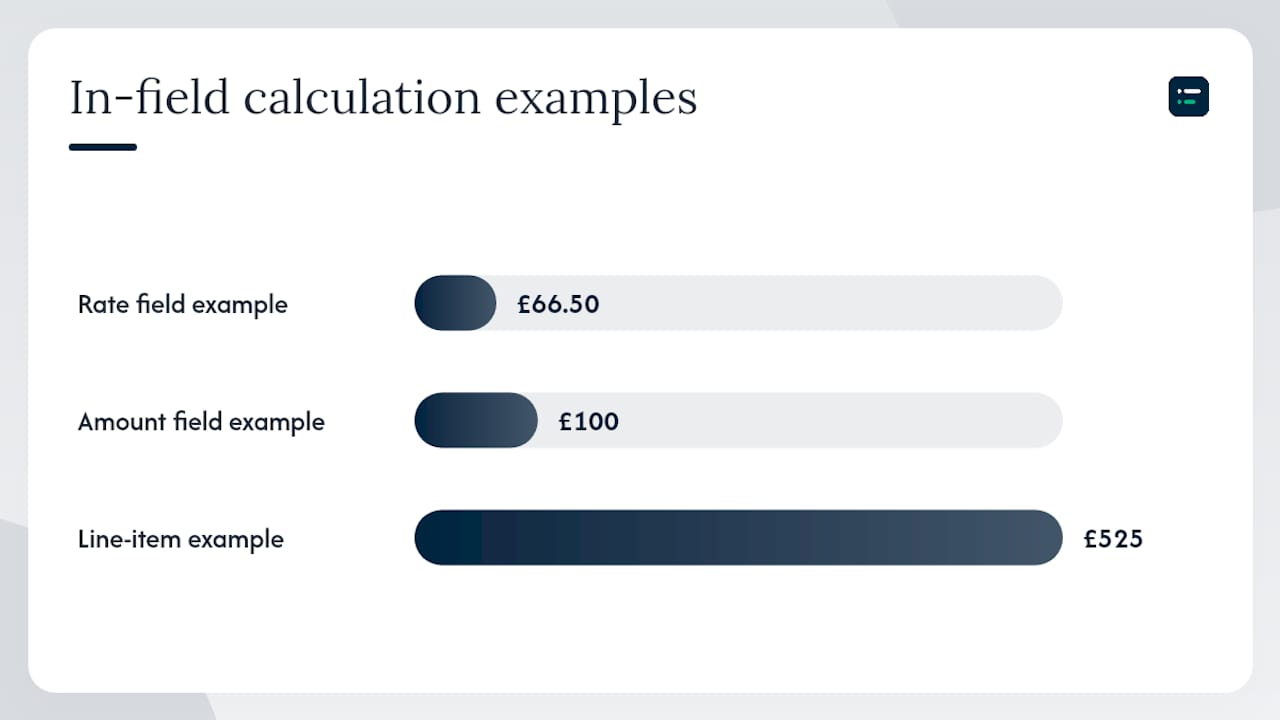
You can also type a sum straight into an Amount or Rate field using +, -, \*, / and brackets, then press Tab to get the result. No calculator needed.
Examples:
- Type `95*.7` in a Rate field, press Tab, and it resolves to 66.50.
- Type `1200/12` in an Amount field, press Tab, and it resolves to 100.
- Type `450+75` in a line-item field, press Tab, and it resolves to 525.
A quick invoice walkthrough: Open a new invoice with Ctrl + Alt + I. Tab into the date field and press T for today. Tab to the line-item amount, type your sum (for example `500*.8`), press Tab to resolve it, then press Alt + Shift + S (in Chrome) to save. The whole transaction stays on the keyboard.
- * *
!How do date shortcuts and in-field calculations speed up data entry?, overview diagram
How do browser differences affect QuickBooks Online shortcuts?
Running QuickBooks Online in a browser means the browser can catch a key combination before QuickBooks sees it.
- Chrome and Firefox take plain Alt + S, so use Alt + Shift + S to save.
- Ctrl + N opens a second window. Intuit notes that in Chrome the new window stays signed in to your company, while in Firefox it does not.
- Extensions such as password managers and tab managers sometimes claim Alt or Ctrl + Alt combinations. Disable them one at a time to find the culprit.
When a shortcut stops responding: try the Alt + Shift variant first; if that fails, disable extensions one by one; as a last check, open QuickBooks Online in a private window, where most extensions are off by default, to see whether the browser or an extension is responsible.
Browser shortcuts that sit happily alongside QuickBooks include Ctrl + F (find text on a long register page) and Ctrl + + / Ctrl + - (zoom in and out when reading small figures).
- * *
How do QuickBooks Online shortcuts work on a Mac?
Mac users press Ctrl + Option where Windows uses Ctrl + Alt, and Option where Windows uses Alt. The letters stay the same.
Common Mac equivalents:
- Ctrl + Option + I, new invoice
- Ctrl + Option + A, chart of accounts
- Option + Control + S, save a form
- Ctrl + Option + ?, open the shortcut list
- Control + Option + U, run payroll
Intuit's help article says Mac users can use Command in place of Alt or Ctrl only where it says so, so stick to Ctrl + Option unless a shortcut notes otherwise.
- * *
What are the core QuickBooks Desktop shortcuts?
QuickBooks Desktop is an installed application, so it does not compete with a browser for key combinations and uses a simpler single-Ctrl model. These come from Intuit's Desktop keyboard shortcuts article.
| Action | Desktop shortcut (Windows) |
|---|---|
| New invoice | Ctrl + I |
| Write cheque | Ctrl + W |
| Chart of accounts | Ctrl + A |
| Account register | Ctrl + R |
| Edit a list item | Ctrl + E |
| Delete a list item | Ctrl + D |
| Delete a transaction line | Ctrl + Del |
| Insert a transaction line | Ctrl + Ins |
| Memorise the current form | Ctrl + M |
| Transaction journal | Ctrl + Y |
| Product information | F2 or Ctrl + 1 |
QuickBooks Desktop for Mac uses Command instead, with some different letters (for example Command + K to write a cheque), so check Intuit's article if you work on a Mac.
- * *
How do Online and Desktop shortcuts differ, and which should you learn first?
The difference comes down to one fact: Online runs in a browser, Desktop does not.
- Online uses Ctrl + Alt (Windows) or Ctrl + Option (Mac) to avoid browser conflicts.
- Desktop uses a single Ctrl because there is no browser in the way.
- Online's save shortcut depends on the browser (Alt + S or Alt + Shift + S).
A quick guide:
- If you work mainly in a browser, learn the Online Ctrl + Alt combinations first, plus Alt + Shift + S for Chrome and Firefox.
- If you use Desktop daily, start with Ctrl + I, Ctrl + A, Ctrl + W and Ctrl + M, which cover creating transactions and finding accounts.
- If you use both, the accounting workflow bottlenecks guide) looks at where time goes in a mixed workflow.
- * *
How should you practise shortcuts so they stick?
Trying to memorise a full list in one sitting rarely works. A small set used every day does.
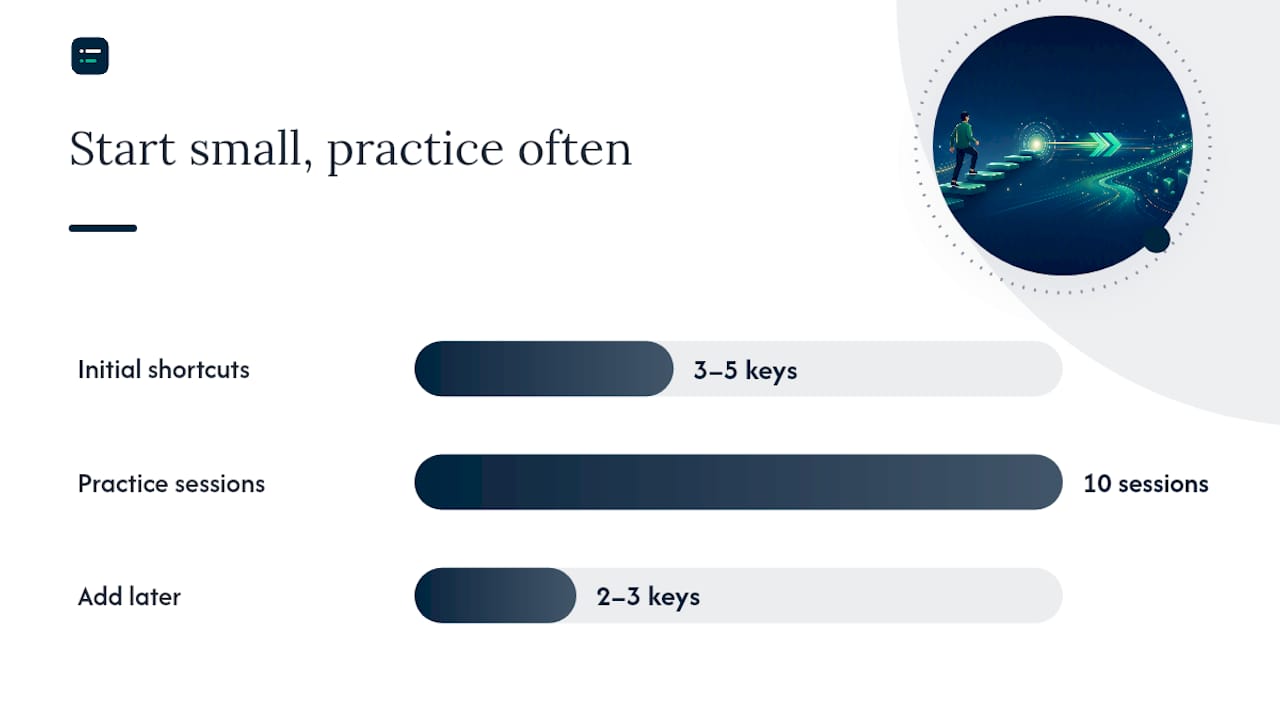
- Week 1: Pick three to five shortcuts for your most frequent task (new invoice, save, chart of accounts). Use them every time, even when the mouse feels quicker.
- Every session: Repeat the same set until you stop thinking about it.
- Week 2 onwards: Add two or three more. Date keys and in-field sums are good next steps because you use them on every transaction.
Pairing shortcuts with accounting workflow templates) helps too: a template pre-fills the recurring details and the keyboard handles the rest.
Tip: _Keep the shortcut list (Ctrl + Alt + ? on Windows, Ctrl + Option + ? on Mac) open in a second tab while you practise._
- * *
!How should you practise shortcuts to build lasting muscle memory?, overview diagram
How do you open the in-app shortcut list and get a printable version?
The quickest way to see every QuickBooks Online shortcut is the in-app list:
- Windows: press Ctrl + Alt + ? from anywhere in QuickBooks Online.
- Mac: press Ctrl + Option + ?.
You can print it from the browser (Ctrl + P) or take a screenshot. Intuit's help articles for Online and Desktop also list the shortcuts in a form you can copy into a document and format for printing.
A simple A4 layout: two columns, grouped as global shortcuts, form shortcuts, date keys and in-field sums, with Windows on the left and Mac on the right.
- * *
Going further than shortcuts
Shortcuts speed up the typing, but they do not take work away. If you want QuickBooks to handle more of the categorising and matching, our QuickBooks and Intuit Intelligence listing covers the AI features Intuit has built in. The AI Ledger is an independent directory of 300+ AI tools for accountants and bookkeepers, with editor scores that are never for sale and a last verified date on every listing. Browse the directory or the data entry and receipts category for tools that work alongside QuickBooks.
- * *
Sources
The following sources underpin the shortcuts in this article:
- Keyboard shortcuts for QuickBooks Online, Intuit help article, updated 28 August 2026
- Keyboard shortcuts in QuickBooks Desktop, Intuit help article, updated 5 August 2026
- Are there any keystroke shortcuts in QBO for actions?, reply from an Intuit community moderator, 29 September 2022
Recommended
- How to build accounting workflow templates in 2026)
- Grow your bookkeeping practice with automation)
- Accounting workflow automation examples for 2026
- Common accounting workflow bottlenecks: your 2026 fix)