Cloud bookkeeping migration: a guide for UK accountants
By The AI Ledger editorial team | Published 2026-08-04 | Updated 2026-11-20
Cloud bookkeeping migration is the process of moving a practice's or a client's financial records, workflows and integrations from desktop software or spreadsheets to a cloud-hosted platform, where the ledger is stored online and shared by everyone who needs it. If you are starting today, three steps come first:
- Take a verified backup of the existing ledger and export a trial balance at the current period end.
- List every integration the client uses (payroll, e-commerce, CRM, payment processors) and confirm a cloud equivalent exists for each.
- Set a firm cutover date and tell the client well in advance, so their champion has time to prepare.
Judge the project on things you can track: a shorter monthly close, bank feeds connected for every active account, and fewer manual journals in the months after go-live.
This guide also covers the jobs that usually travel with a migration: moving clients off spreadsheets, setting up a paperless practice, and running the practice remotely. If you want the background on what cloud accounting is, start with cloud accounting explained.
- * *
Key takeaways
| Point | Details |
|---|---|
| Set the cutover date early | Agree it with the client weeks before go-live, and ideally at the end of a VAT period. |
| Clean data before you migrate | Reconcile accounts and remove duplicates before exporting. Unclean data moves with you. |
| Phase by complexity | Start with simple single-entity clients, then move to multi-entity or multicurrency work. |
| Pilot spreadsheet imports | Import a small batch, check it field by field, then scale up in batches. |
| Go paperless and remote on purpose | Fix retention rules, digital-only intake, MFA and backups before you scale. |
| Train in two stages | One session before go-live, a second once users have real questions. |
- * *
Table of Contents
- What changes when a practice moves to the cloud
- Why migrate
- How to choose which clients to migrate first
- A five-phase migration plan
- Moving clients off spreadsheets
- Platforms and tools for UK migrations
- Setting up a paperless practice
- Setting up a remote practice
- Security and UK compliance during migration
- Training and adoption
- How long it takes and what drives the cost
- Common migration mistakes and how to fix them
- Frequently asked questions
- Sources
What changes when a practice moves to the cloud
A desktop ledger sits on one machine. A cloud ledger is shared: the client, their bookkeeper and the practice look at the same live figures, bank feeds bring transactions in, and connected apps handle receipts, payroll and invoicing. The bookkeeping processes that change most are bank reconciliation (feed-driven rather than statement-driven), receipt capture (photographed or forwarded rather than posted), payroll posting (through an integration) and sales invoicing.
Microsoft Azure's cloud migration overview describes several approaches, from a straight rehost of existing systems to a replatform that redesigns them. For a bookkeeping practice the choice usually sits between the two:
- Rehost: import the chart of accounts and opening balances, keep existing processes.
- Replatform: use the move to redesign bank reconciliation, automate receipt matching and retire manual journals.
Most practices rehost the first few clients and replatform once the team is confident in the new system.
- * *
Why migrate
IFAC's discussion of cloud accounting migration sets out the case: cloud accounting centralises data, supports remote access and automation, and can reduce costs and operational risk. In practice that means:
- Up-to-date reporting. Clients can see their profit and loss and cash position without waiting for a month-end pack, which moves the conversation forward rather than backward.
- Less data entry. Bank feeds, bank rules and receipt-matching tools take over routine posting. Our guide to growing a bookkeeping practice with automation) covers where that time goes.
- Fewer weak points. The main security risk in many practices is emailed spreadsheets and insecure file sharing, which a cloud system replaces.
- A different cost profile. Subscriptions replace upfront licences and server upkeep.
- Connected apps. Receipt capture, payroll and e-commerce tools connect directly instead of through manual imports. Browse the data entry and receipts category for options.
It also prepares the practice for Making Tax Digital. GOV.UK's Making Tax Digital for Income Tax collection sets out the digital record-keeping and quarterly update rules, and the software has to be compatible (HMRC's list of software for sending Income Tax updates).
- * *
How to choose which clients to migrate first
Not every client should move at once. Early, simple migrations give the team a repeatable process before the harder ones.
Build a client inventory. For each client record the number of bank accounts, active integrations, monthly transaction volume, whether the books are reconciled, and the date of the last clean period-end close. That inventory becomes your migration queue.
Priority rules:
- First wave: one bank account, no third-party integrations, straightforward VAT and low transaction volumes.
- Later waves: multiple entities, multicurrency, payroll integrations or e-commerce feeds.
- Clients with unreconciled or messy books are cleaned up before migration, not during it.
Readiness checklist for each client:
- Books reconciled to the most recent period end
- Full backup of existing data confirmed and stored securely
- Chart of accounts reviewed and unused codes removed
- Every integration listed with a cloud alternative confirmed
- A client champion named (the person on the client side who will own the new system)
- A data processing agreement in place with the new provider
For anything beyond a simple client, run a parallel period. Beancount's migration guide points out that parallel runs catch timing mismatches between bank feeds and settlement that sample imports miss.
- * *
A five-phase migration plan
A phased checklist from Balances.cloud is the basis for the structure below. Its central warning is the familiar one: garbage in, garbage out.
Phase 1: Discovery
- Export the full trial balance, aged debtors, aged creditors and fixed asset register.
- Document the chart of accounts and flag codes to consolidate or rename.
- List all integrations and confirm API or CSV import in the target platform.
- Agree the cutover date and the last transaction date in the old system.
Phase 2: Data mapping
- Map old account codes to the new chart. Note any codes that split or merge.
- Prepare CSV templates for customers, suppliers, opening balances and outstanding invoices.
- Confirm the VAT treatment of each code carries across, especially partial exemption and reverse charge.
- Document custom fields or tracking categories the client uses for reporting.
Phase 3: Test import
- Import one month of transactions into a test or sandbox company.
- Compare the trial balance between the old system and the test import. Any difference points to a mapping error.
- Connect each bank feed and confirm matching rules work.
- Check that payroll journals post correctly and that a draft VAT return gives the right figures.
Phase 4: Cutover and first close
- Post the final transactions in the old system up to the cutover date.
- Export the final trial balance and reconcile it to the opening balances in the new system.
- Switch on live bank feeds and confirm every account is pulling transactions.
- Complete the first bank reconciliation in the new system before declaring go-live.
Phase 5: Stabilisation
- Watch bank-feed coverage daily for the first couple of weeks.
- Run a parallel reconciliation for the first full period and confirm closing balances match.
- Check that payroll, invoicing and receipt integrations post correctly.
- Keep a migration log and close each issue within the agreed support window.
What to export and how to check it:
| Item to export | Format | Validation check |
|---|---|---|
| Trial balance (period end) | CSV / PDF | Matches opening balances in new system |
| Customer list | CSV | Contact details and payment terms present |
| Supplier list | CSV | Contact details and payment terms present |
| Outstanding sales invoices | CSV | Total matches aged debtors report |
| Outstanding purchase invoices | CSV | Total matches aged creditors report |
| Fixed asset register | CSV / PDF | Depreciation schedule carried forward |
| Bank reconciliation statement | Confirms last reconciled balance before cutover |
Where you can, cut over at the end of a VAT period rather than mid-quarter. The first return from the new system then covers a complete period, which makes the submission far easier to reconcile.
- * *
Moving clients off spreadsheets
Some clients have no ledger to migrate, only workbooks. The same rules apply, with more work up front, because a spreadsheet often holds business logic nobody has written down. Spreadsheets on local drives or passed round by email are also hard to restrict by role or audit, which matters under UK GDPR when they hold personal data.
Phase the move. Yonetior's guide to migrating from Excel suggests client management first, then project and task tracking, then finance and reporting, validating each stage before the next. Keep genuine financial modelling and ad hoc analysis in Excel or Google Sheets; the aim is to stop using spreadsheets as databases.
Audit every workbook first. For each significant file record:
| Field | What to record |
|---|---|
| File name and location | Full path, shared drive or local |
| Owner | A named person, not a team |
| Active users | Who opens it and how often |
| Purpose | One sentence on what it does |
| Critical formulas | Any formula that drives a decision or report |
| Macros and external links | What they automate, and which files they pull from |
| Migration risk | Low, medium or high |
Treat a workbook as high risk if it has macros, links to other files, or formulas that encode pricing, commission or tax rules. A formula such as `=IF(B2>10000,B2*0.15,B2*0.1)` is a pricing rule: write it out in plain English, confirm it with the person who built it, and treat it as a requirement for the new system.
Clean before you import. Nutshell's guide to moving from spreadsheets recommends merging duplicates, standardising formats and archiving stale records first. Work through:
- Duplicates: sort by email, then company and phone; keep the most recently updated record.
- Dates: one format per column. Use YYYY-MM-DD for imports if the tool asks for it.
- Phone numbers: one format, with spaces and brackets stripped, so the same number is not two contacts.
- Names and addresses: consistent capitals and one house style ("Ltd" or "Limited").
- Email addresses: quarantine any that fail a basic check.
- Stale records: archive them separately rather than importing them.
| Field | Before | After |
|---|---|---|
| Date | March 1st 2024 | 2024-03-01 |
| Phone | (07700) 900123 | +44 7700 900123 |
| Company | acme ltd | Acme Ltd |
| jane.smith@acme | Quarantined for checking |
Keep a migration log of every data decision (what you archived and why). Under UK GDPR it forms part of your accountability record, and it is the place to note the lawful basis for processing the data in the new system.
Pilot, then scale in batches. Raion Tech's spreadsheet-to-CRM guide recommends a small test import of 50 to 100 records, fixing field mappings and truncation before going further. Then:
- Map every column to a field in the new system, or decide to drop it.
- Check for truncated text, mangled characters and blank required fields.
- Confirm linked records (contacts to companies) resolved correctly.
- Spot-check a sample of records against the source and compare record counts.
- Log in as a standard user and confirm permissions hide what they should.
Stop and freeze the import if record counts do not match, any financial figure or tax code differs from the source, an automation fires at real clients, or a permission error exposes restricted data. Make the new system read-only, go back to the archived spreadsheets, find the cause, and only then try again. Once batches validate cleanly, make the original spreadsheets read-only on go-live day so nobody keeps a shadow copy going.
- * *
Platforms and tools for UK migrations
Most cloud accounting providers offer migration aids, but the depth varies. Whichever you choose, start with clients who are keen to move and refine the process before rolling it out to everyone.
- Xero offers CSV import for contacts, invoices and opening balances, a conversion checklist and partner support. Our listing covers Xero's AI features. A common choice for a mixed client base that needs a broad app ecosystem.
- QuickBooks Online (UK) has a migration route from QuickBooks Desktop and MTD VAT filing built in. See QuickBooks and Intuit Intelligence. A natural path for existing Desktop clients.
- Sage cloud accounting suits clients needing more stock and job costing detail, with certified partners for complex conversions.
- FreeAgent is built for freelancers, contractors and micro-businesses, with MTD VAT filing included. Migration is usually simple for low-volume sole traders and small companies.
- Document capture tools such as Dext, AutoEntry and Datamolino replace paper receipts and emailed invoices with automated extraction into the ledger. Making that change during the migration removes one of the most manual steps.
What to look for in migration support:
- CSV and general ledger import with field-mapping guidance
- A sandbox or test company for trial imports
- MTD-compatible VAT filing built in
- Bank feeds for the client's banks and payment processors (Stripe, PayPal, GoCardless)
- An onboarding team you can reach as a practice partner
Our accounting software evaluation checklist) gives you a reusable set of criteria, and the directory and side-by-side comparisons cover the add-on tools.
- * *
Setting up a paperless practice
A paperless practice runs every workflow, from onboarding to filing, in digital form. A migration is a good moment to get there, because the client is already changing how they send you information. Scanning old files is the small part of the job; the larger part is making sure no new paper comes in.
The four tool categories, and why they must connect:
| Tool category | What it does | Examples in the directory |
|---|---|---|
| Cloud accounting platform | Ledger, VAT returns, MTD submission | Xero, QuickBooks, FreeAgent |
| Practice management | Tasks, deadlines, client records | Karbon, Financial Cents, Senta |
| Document management and client portal | Secure storage, document requests, uploads | TaxDome |
| E-signature and engagement | Engagement letters and approvals without printing | Ignition |
Financial Cents' guide to paperless accounting makes the point that an integrated stack decides whether the change succeeds. A document system that cannot pass files to the ledger means re-keying, which defeats the purpose. Connect bank feeds before processing the first transaction; retrofitting them to existing records creates reconciliation work.
Retention before scanning. Write the retention policy before you shred anything. GOV.UK says a limited company must keep records for 6 years from the end of the last company financial year they relate to, or longer in some cases, and self-employed people for at least 5 years after the 31 January submission deadline of the relevant tax year. Your policy should state which record types you keep, for how long and in what format.
Digitising the backlog is a one-off project:
- Map every point where paper enters or leaves the practice: onboarding, invoicing, tax preparation, document delivery.
- Sort files into active records, archive records, and documents that can be destroyed under the policy.
- Scan active records first, with one naming convention (for example ClientName\_Year\_DocumentType) and one folder structure (Client / Year / Service).
- Move older archives to a separate, clearly labelled storage area so they do not clutter live client files.
- Shred originals only once each scan is checked and saved, and only where your policy allows it.
Digital workflows are permanent. Build them for:
- Onboarding: digital ID checks, e-signed engagement letters, portal account set-up
- Document requests: portal requests with a deadline and automatic reminders
- Month-end close: bank feed reconciliation, categorisation rules, digital sign-off
- Correspondence: through the portal or email, stored against the client automatically
Set user permissions before the first transaction, so each person sees only the clients and functions they need. Build a workflow template) for each service (bookkeeping, VAT, year-end) before going live.
Client intake is usually the sticking point. Make digital-only intake the rule from day one rather than accepting paper as a fallback. Introduce tools in stages (ledger and bank feeds, then the portal, then e-signature), send clients a one-page guide to uploading and signing, and offer a short screen-share call to anyone who struggles. A client who posts a receipt because the portal confused them needs help, not pressure. Our guide to common workflow bottlenecks) covers the habits that let paper creep back in.
- * *
Setting up a remote practice
Remote practices tend to struggle for three reasons: weak security, no single source of truth, and undocumented processes. Fix those before taking on more clients.
Keep the stack small. Five categories cover most practices: cloud accounting as the ledger of record, practice management, a client portal, document capture, and payroll and reporting. Everything connects to the ledger through native connectors or an API rather than manual re-entry. A solo practitioner may need only the ledger and a portal; a larger firm adds practice management and payroll software.
Security baseline:
- Multi-factor authentication on every system, with no exceptions
- Encrypted storage and a 3-2-1 backup routine (three copies, two types of media, one held away from the main provider)
- A secure portal instead of email for anything containing financial data
- A password manager, a VPN where needed, and regular phishing-awareness training
- A written incident plan, rehearsed rather than only read
When vetting vendors, Safebooks' remote workflow guidance suggests asking about SOC 2 or ISO 27001 certification as a sign of independent audit, and checking data ownership terms in the contract.
Backups and outages. The platform's own backups protect the platform, not necessarily you if your account is locked, hacked or deleted. Export key reports and client files on a schedule into an encrypted archive you control. Write a runbook naming who contacts clients, who escalates to the vendor and who can restore data, and rank systems by how much harm an outage does: payroll failing on pay day matters more than a practice management outage. Keep an offline copy of your incident contact list.
SOPs before scale. Audit recurring tasks (how long, who, how often they go wrong) and classify each as routine, judgement-based or client-facing. Every SOP should state its purpose, the tools and access needed, who owns and reviews each step, and where a second person signs off. Belay's remote bookkeeping guide argues that structured process, rather than sitting in the same office, is what makes distributed teams reliable. Track turnaround time, revision rate and hours per task, and review them each quarter.
Hire or outsource. Safebooks recommends keeping advisory work and final compliance sign-off in-house and outsourcing routine process work such as reconciliations, payables, receivables and month-end support. Test candidates on a real task, make sure working hours overlap, and give new starters one completed SOP to shadow before they touch a live client file.
Client relationships. Send the document checklist and portal invite before the first call, use e-signature for engagement letters, and agree a fixed rhythm: monthly management accounts, a quarterly video review and a clear escalation route. Practitioners discussing fully remote practices on AccountingWEB point to reliable video calls and a predictable cadence. Tools in the client communications category can help.
Regulation still applies in full. Your professional body's rules on practising certificates and CPD do not change because you work from home. Accountancy service providers not supervised by a professional body must register with HMRC for anti-money laundering supervision. UK GDPR and professional indemnity cover apply as before. If you take on clients outside the UK or staff based overseas, get advice from your professional body before assuming your existing arrangements cover it, and write down how you verify client identity remotely.
- * *
Security and UK compliance during migration
!Security and UK compliance during migration, overview diagram
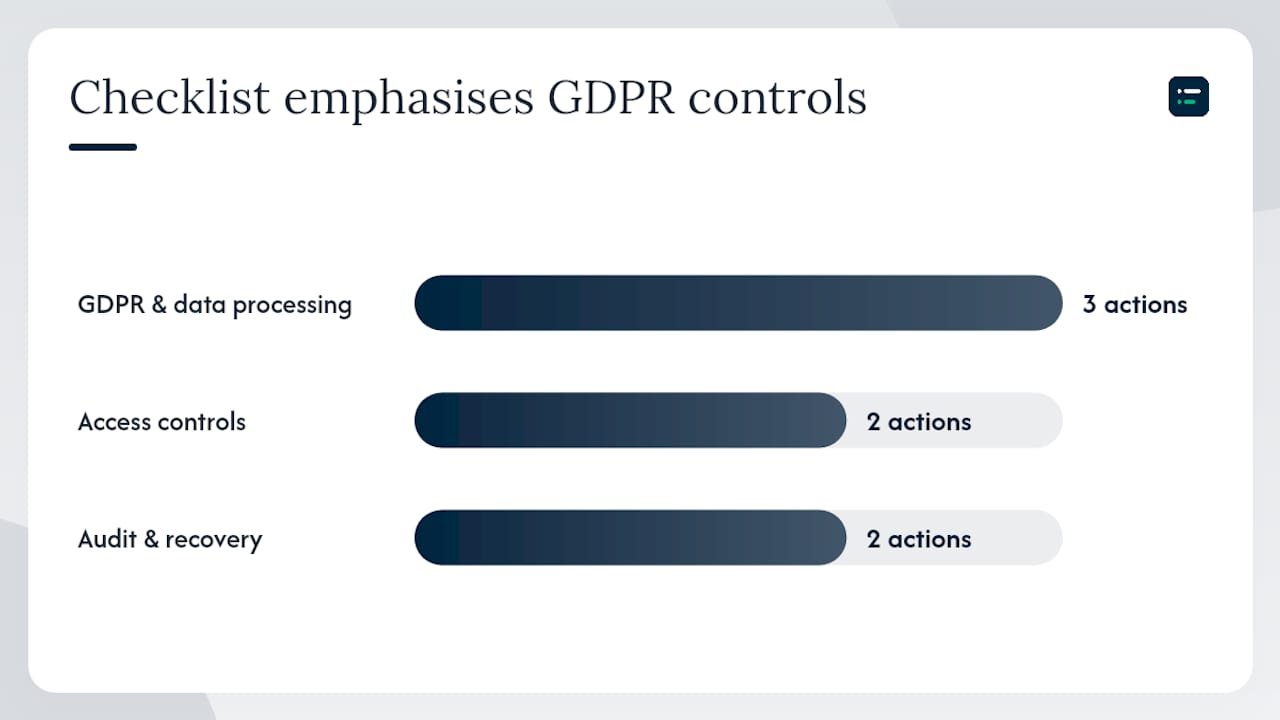
The biggest risk during a migration is usually the transfer itself rather than the destination platform.
UK GDPR:
- Confirm the provider acts as a data processor and that a data processing agreement is signed before any client data moves.
- Record the lawful basis for processing client data in the new system.
- Check where the provider stores data. If it is outside the UK, confirm the transfer mechanism (adequacy decision or standard contractual clauses).
- Read the ICO's guidance if you are unsure about your obligations during the transfer.
Access:
- Turn on multi-factor authentication for every user on day one.
- Use role-based access: bookkeepers at transaction level, clients with read-only or approval access, administrators with full access.
- Remove leavers' access promptly and review the user list at the end of the first month.
Audit trail and retention:
- Confirm the platform keeps an audit trail of transactions and user actions, and test it with a dummy transaction.
- Keep exports of the pre-migration data for as long as the retention periods above require.
- Check the new platform meets the Making Tax Digital for Income Tax record-keeping rules before go-live where they apply.
- * *
Training and adoption
Software problems are usually fixed quickly. Behaviour takes longer: staff drift back to emailed spreadsheets and manual journals when the new system feels unfamiliar.
Training by role:
- Bookkeepers: hands-on sessions on bank reconciliation, receipt capture and coding, focused on the daily workflow.
- Managers and approvers: reporting, user management and approvals.
- Clients: a short walkthrough of approving invoices, viewing reports and uploading receipts from the mobile app.
Train on real, low-risk client files with the SOP alongside, and run a second session a couple of weeks after go-live, when users have real questions. Name a champion for each system who fields quick questions.
What to track in the first few months: whether nominated users are logging in, how many receipts match automatically, reconciliation time per period against the old baseline, and the number of manual journals.
Close the old routes. If staff can still upload receipts to a shared drive, some will. Remove that access on go-live day. AI receipt capture and transaction classification often arrive with the new workflow; training users on them from the start avoids a second round of change later. Our guide to the role of AI in bookkeeping) covers what they do.
- * *
How long it takes and what drives the cost
A sole trader with one bank account, no integrations and clean books can move very quickly. A multi-entity client with payroll, e-commerce feeds, multicurrency and historical data to import takes far longer, especially if cleaning comes first. Time and cost are driven by:
- Transaction volume and how much history you import.
- The number and complexity of integrations, each tested on its own.
- Multi-entity structures, where each entity is effectively a separate migration.
- Data quality in the source system, since unreconciled books add work before you can start.
- Training needs, which grow with the size of the client's team.
Pricing the work: a fixed price suits simple migrations, quoted from the inventory. For complex ones, time and materials with a capped estimate protects both sides. Spell out what is included (mapping, testing, one round of corrections, training) and what triggers extra charges, such as unreconciled books found mid-project or integrations not listed at scoping.
- * *
Common migration mistakes and how to fix them
- Poor chart-of-accounts mapping. The trial balance does not match the pre-migration export. Compare account by account, post correcting journals with a clear narrative, and update the mapping document.
- Skipping the parallel run. The first close becomes the first test, and errors are harder to trace.
- Leaving integrations until after go-live. Payroll journals fail to post or e-commerce feeds duplicate transactions. Pause the integration, reverse duplicates, and retest in a controlled window.
- Undertrained users. Run a short session on the specific task people are avoiding rather than repeating the whole onboarding.
- Migrating unclean data. Run deduplication reports, write off genuinely old balances with client approval, and reconcile each account before the next close.
- Missing reports. Staff keep a side spreadsheet because one report they rely on was never built. List the reports people use and rebuild them before cutover.
Post-migration checks:
- Trial balance matches the pre-migration export to the penny
- All bank accounts reconciled soon after go-live
- All integrations active and posting correctly
- First VAT return checked against the last return from the old system
- User list reviewed and unnecessary accounts removed
- Audit trail tested
When you are choosing the tools to sit around the new ledger, the directory lists 300+ AI tools for accountants with editor scores, and the finder narrows them down by task and software.
- * *
Frequently asked questions
How do I move a client from spreadsheets to accounting software?
Audit every workbook (owner, purpose, formulas, macros, links), clean the data, then run a small pilot import and check it against the source before importing the rest in batches. Make the original spreadsheets read-only on go-live day. The spreadsheets section above has the full checklist.
What do I need to set up a paperless accounting practice?
A cloud ledger, practice management software, a document portal and e-signature, all connected so files and data pass between them. Write a retention policy before scanning anything, scan recent records first, and make digital-only intake the rule for clients from day one.
How long do I have to keep records after going paperless?
GOV.UK says limited companies keep records for 6 years from the end of the last company financial year they relate to, or longer in some cases, and self-employed people for at least 5 years after the 31 January submission deadline of the relevant tax year. Digital copies are fine as long as they are complete and readable.
What does a remote accounting practice need first?
Multi-factor authentication on every system, one cloud ledger as the single source of truth, a secure client portal, a backup routine you control, and written SOPs for recurring work before you add more clients.
Should I migrate all clients at once?
No. Start with simple single-entity clients with clean books, build a repeatable process, then move multi-entity, multicurrency and integration-heavy clients.
When is the best time to cut over?
At the end of a VAT period, after the books are reconciled, so the first return from the new system covers a complete period.
- * *
Sources
- Why cloud-based accounting migration is the right choice for PAOs, IFAC
- What is cloud migration, Microsoft Azure
- Migrating your accounting to SaaS: a step-by-step checklist, Balances.cloud
- How to switch accounting software, Beancount
- Making Tax Digital for Income Tax, GOV.UK
- Software for sending Income Tax updates, GOV.UK
- Company and accounting records, GOV.UK
- How long to keep your records (self-employed), GOV.UK
- Money Laundering Regulations: who needs to register, GOV.UK
- Migrating from Excel to software, Yonetior
- Challenges of transitioning from spreadsheets to CRM, Nutshell
- Spreadsheets to CRM migration guide, Raion Tech
- Paperless accounting, Financial Cents
- Set up your ideal remote accounting workflow, Safebooks
- Remote bookkeeping best practices, Belay
- Running a practice remotely, AccountingWEB
Recommended
- Cloud accounting explained: what UK businesses need to know
- How to build accounting workflow templates in 2026)
- Accounting software integration: your 2026 guide)
- Types of data entry automation tools